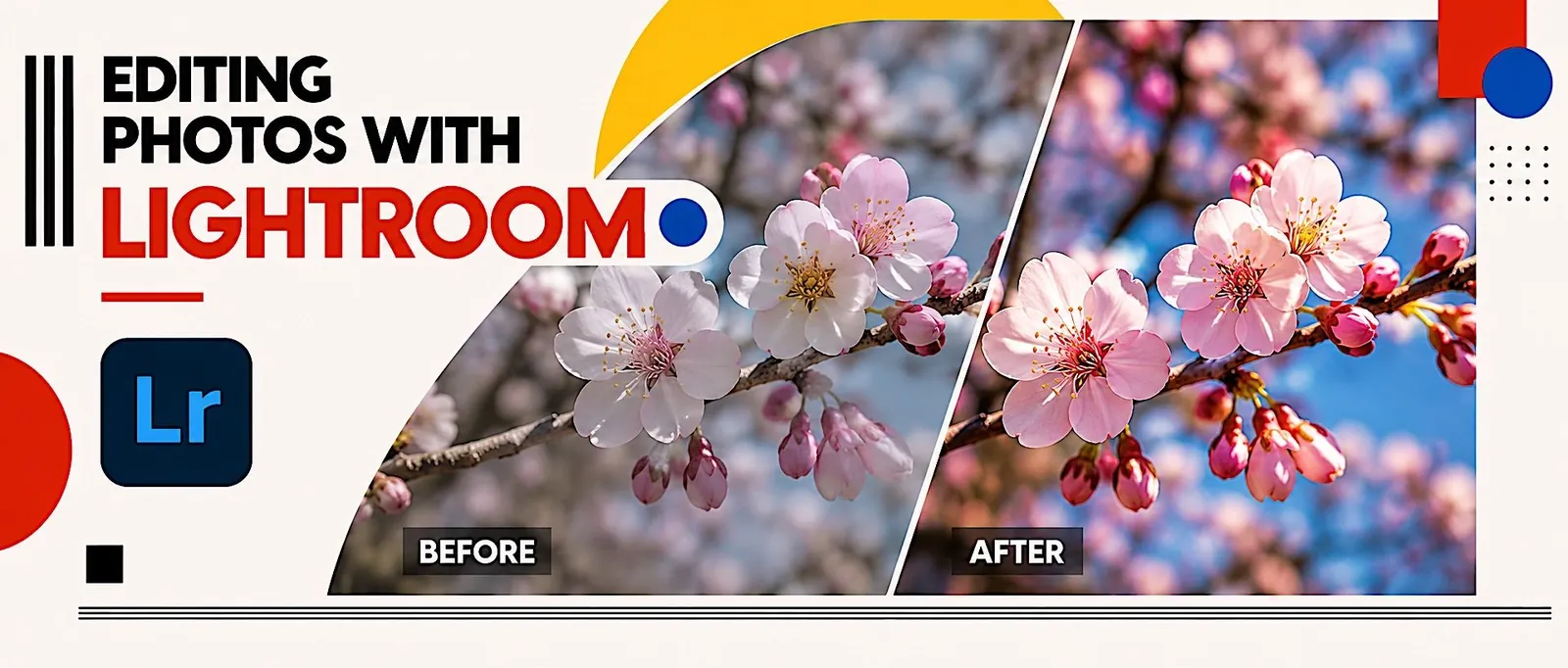
Edit one RAW photo three different ways in Lightroom. Practice, not graded.
Practice | Ungraded | Week 4, Tuesday
One Photo, Three Ways
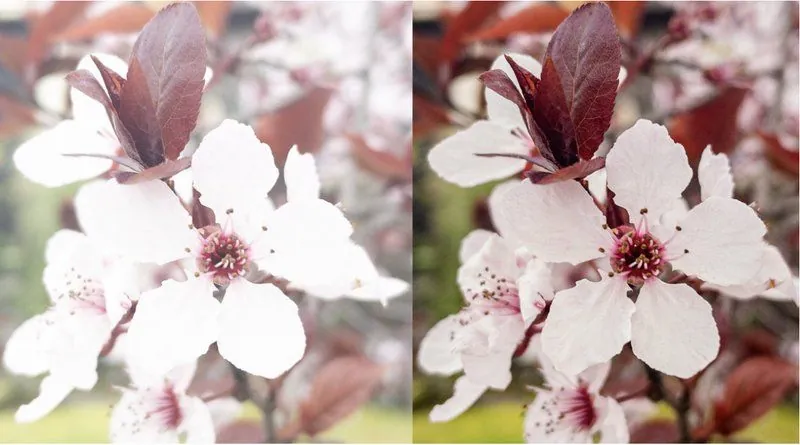
Edit the same RAW file three different ways, to see how much one photo can change.
START HEREOpen your one-sheetPrint it or keep it open while you work.Open ↗1
RAW file, the blossom
3
versions, all different
0
points: this is practice
When: In class, Week 4, Tuesday. Then edit your Weekly Mission photo the same way.
The goal
Three edits that each look finished and look nothing like each other.
Step by step
Follow these in order.
01
Download and import
Save the DNG to your Photography folder.
• Open Lightroom, click Import, add the file.
Watch this tutorial. It covers importing, editing, presets, versions and exporting.
02
Version 1: by hand
Light, then Color, then Effects.
• Highlights down to bring back the petals, shadows up to open the leaves.
• When you like it, save it as a Version.
Watch out: Big slider moves. If it looks edited, back off.
03
Version 2: a preset, refined
Reset to the original, pick a color preset.
• Adjust it with the panels until it looks right to you.
• Save it as a Version.
Watch out: A preset left as it is. Refine it with the panels.
04
Version 3, then export
Reset again, any preset, then your own touch.
• Export all three as JPGs into your Photography folder.
• Upload them here so I can see how you are doing.
Watch out: Two versions that look the same. Make each one a different direction.
Hand it in
Three JPGs, uploaded here at the end of class. Not graded. It shows me where you need help.
Check before you submit